


Table of Contents
TogglePC gaming tips can transform a frustrating experience into a smooth, enjoyable one. Whether someone is building their first rig or upgrading an existing setup, small adjustments make a big difference. Frame rates drop. Games stutter. Load times drag on forever. These problems aren’t inevitable, they’re fixable.
This guide covers practical strategies to boost performance, fine-tune settings, and get the most out of any gaming PC. From graphics optimization to hardware upgrades, these tips help players squeeze every bit of power from their systems. Let’s jump into what actually works.
Key Takeaways
- Lowering shadows, reflections, and anti-aliasing settings can double your frame rate with minimal visual loss.
- Keep GPU drivers updated weekly—new releases can improve gaming performance by 10-20% in supported titles.
- Enable XMP or EXPO in your BIOS to unlock your RAM’s full speed, a simple PC gaming tip many users overlook.
- Use NVIDIA DLSS or AMD FSR when available for free performance boosts without sacrificing image quality.
- Upgrade to a 144Hz monitor for noticeably smoother gameplay that no graphics card can replicate on a 60Hz screen.
- Disable motion blur, chromatic aberration, and film grain to improve visual clarity during fast-paced action.
Optimize Your Graphics Settings
Graphics settings control how games look and perform. Finding the right balance between visual quality and frame rate is key to a better gaming experience.
Start with the in-game resolution. Native resolution looks sharpest, but dropping it by one step can boost frames significantly. Most players won’t notice the difference during fast-paced action.
Shadows and reflections eat up GPU resources. Setting these to medium instead of ultra often doubles performance with minimal visual loss. Anti-aliasing smooths jagged edges, but FXAA uses fewer resources than MSAA or TAA.
Texture quality depends on VRAM. Players with 8GB or more can push textures to high or ultra. Those with less should stick to medium to avoid stuttering.
Many modern games include built-in benchmarks. Run these after adjusting settings to measure actual FPS improvements. A target of 60 FPS works for most games, though competitive players often aim for 144 FPS or higher.
NVIDIA DLSS and AMD FSR are game-changers. These technologies upscale lower resolutions using AI, delivering near-native quality at much higher frame rates. Enable them whenever available, they’re free performance boosts.
Keep Your Drivers and Software Updated
Outdated drivers cause crashes, visual glitches, and poor performance. Keeping everything current is one of the simplest PC gaming tips that pays off immediately.
GPU drivers matter most. NVIDIA releases Game Ready drivers for major titles, often improving performance by 10-20% in new releases. AMD’s Adrenalin software offers similar optimizations. Check for updates weekly or enable automatic notifications.
Windows updates sometimes include gaming-specific improvements. The latest versions support DirectStorage, which dramatically reduces load times on NVMe drives. Game Mode in Windows 11 prioritizes gaming processes over background tasks.
Game launchers like Steam, Epic, and GOG update games automatically, but verifying game files occasionally catches corrupted installations. Right-click any game in Steam, select Properties, then Local Files, and click “Verify integrity of game files.”
Motherboard manufacturers release BIOS updates that improve RAM compatibility and system stability. These updates are less frequent but worth checking every few months. Just follow the manufacturer’s instructions carefully, BIOS updates require attention to detail.
Improve System Performance
A clean, well-maintained system runs games better. These PC gaming tips focus on getting maximum performance from existing hardware.
Close background applications before gaming. Web browsers with multiple tabs, chat apps, and cloud sync services consume RAM and CPU cycles. Task Manager shows exactly what’s running, end processes that aren’t needed.
Storage affects gaming more than many realize. SSDs load games faster and reduce texture pop-in during play. An NVMe drive handles modern open-world games better than SATA SSDs. Keep at least 20% of storage free for optimal performance.
RAM speed matters for gaming. Enabling XMP (Intel) or EXPO (AMD) in BIOS unlocks the full speed of memory kits. Many users run expensive RAM at default speeds without realizing it.
Overheating throttles performance. Clean dust from fans and filters every few months. Monitor temperatures with software like HWiNFO64, GPUs should stay under 85°C, and CPUs under 90°C during gaming. Reapplying thermal paste on older systems can drop temperatures by 10-15 degrees.
Disable unnecessary startup programs. Press Ctrl+Shift+Esc, click the Startup tab, and disable apps that don’t need to run at boot. This speeds up Windows and frees resources for gaming.
Enhance Your Gaming Setup
Hardware upgrades and peripheral choices directly impact gaming quality. Smart investments here deliver noticeable improvements.
Monitors matter as much as GPUs. A 144Hz display makes games feel smoother than any graphics card upgrade could on a 60Hz screen. Response times under 5ms reduce motion blur in fast games. IPS panels offer better colors: VA panels deliver deeper blacks.
A good gaming mouse improves accuracy. Look for adjustable DPI, low latency, and a comfortable shape. Wired mice eliminate battery concerns and input delay. Mouse pads with consistent surfaces help with tracking.
Mechanical keyboards provide tactile feedback and faster response times than membrane keyboards. Linear switches work well for gaming, while tactile switches suit typing-heavy games.
A quality headset helps players hear footsteps, environmental cues, and voice chat clearly. Virtual surround sound features in many gaming headsets add spatial awareness without expensive speaker setups.
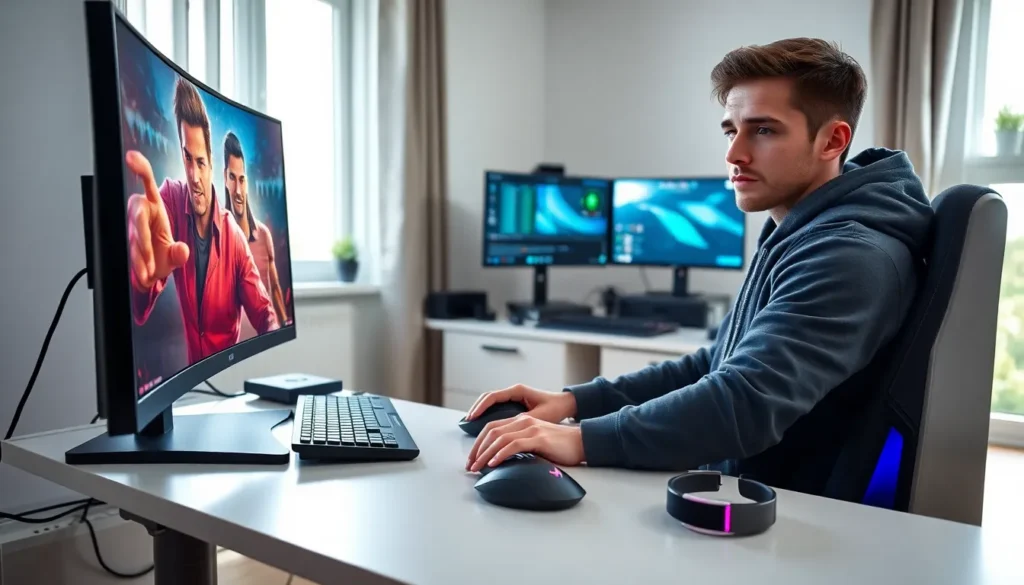
Ergonomics affect long gaming sessions. A comfortable chair, proper desk height, and good lighting reduce fatigue. Position the monitor at arm’s length with the top of the screen at eye level.
Master In-Game Settings and Controls
Every game offers settings that affect performance and playability. Learning to customize these options gives players an edge.
Mouse sensitivity needs attention. Lower sensitivity improves accuracy in shooters but requires more desk space. Many pro players use 400-800 DPI with in-game sensitivity around 1-3. Experiment to find a comfortable setting, then stick with it across games.
Keybinds should match personal preferences. Rebind awkward default keys to accessible positions. Side mouse buttons work great for abilities or weapon swaps. Consistent binds across similar games reduce learning time.
Field of view (FOV) settings trade peripheral vision for target size. Higher FOV shows more of the environment but makes enemies smaller. Competitive players often use 90-110 degrees: lower settings work better on smaller monitors.
Disable motion blur in most games. It adds a cinematic effect but hides visual information and makes some players feel nauseous. Chromatic aberration and film grain are similar, they look artistic but reduce clarity.
Audio settings deserve attention too. Adjust music volume lower than sound effects to hear important gameplay cues. Enable subtitles for story-driven games to catch dialogue during action sequences.
These PC gaming tips work together. A player who optimizes graphics, maintains their system, and masters controls will notice dramatic improvements in their gaming experience.